Tagging records - An Overview
Tags
are unique identifiers that can be associated to your CRM records to
search, sort, categorize, filter, and segment records in a more
efficient way. It is usually like adding keywords or any additional
information to any record in CRM. For example, there may be few Leads in
your CRM account that requires high priority. You can tag those Leads
as Important, so that you can easily filter them from the other Leads in your CRM account.
Tags
in Zoho CRM are specific to each module. You can add unique tags to
each module based on your requirements. Also, tags are usually made
public and can be accessed by all the Zoho CRM users.
Users with administrative profile or Module Customization permission can create tags.

Benefits of Tagging
Use
tags to organize your data in such a way that it meets the needs of
your business. There are multiple cases, where tagging becomes an
integral part of your CRM. Few scenarios are captured below:
- Tag
your records based on the relationships they have with your business.
For example, a record can be a lead, a vendor, or a partner. Categorize
those records using multiple tags and sort or filter them whenever
required.
- Tags can be based on demographics such as location, revenue or company size. You can add various tags such as US, UK, Asia, size 50-100, Enterprize, billion-dollar, small-scale,
etc,. This will be useful for the sales reps who deal with contacts
from a particular region or while following up with a big deal that
should be given higher priority.
- Add
tags based on the Lead source - You can tag your records based on the
source in which they have been created. For example, you may capture
leads from different business units or trade shows, or you may have a
database of contacts, or capture leads/contacts through your websites.
In that case, you can tag them as trade show, website leads, imported leads, and so on.
- Tag
records that has to be contacted on specific criteria. For example, you
may require to contact a lead via email or phone or based on best time
to contact them. Based on the required criteria, tag them as contact via email, contact via phone, contact morning, and so on.
- Add
tags based on products - You may run a business with multiple product
lines. A lead or contact may be interested in all or specific products
and services that you offer. Segment those records based on the product
or service they are interested in.
- Create
tags based on different stages of a lead in your CRM. This helps you to
segment your leads and communicate with them in a better way depending
on the stage of the lead.
 Points to remember
 - Easily search records using tags. You can either use global search or categorize the required records using advanced filters.
- You can also search and find various other data tagged by other CRM users.
- All tags are publicly available to all users. Tags are made public in order to reduce tag clutter and avoid duplicates.
- Make sure you add meaningful names for your tags, since it will be easy while you search, create or edit information.
- You can carry over tags while converting records, so that the related records can be searched.
Tag limits
Since,
tags are public and accessed by all CRM users, we have limited the
number of tags that can be created in your CRM account. This will avoid
creation of too many tags and reduce duplication. The following table
shows the number of tags that can be created for each record and for
each module based on different Zoho CRM editions.
| Edition | No. of tags per record | No. of tags per module |
| Standard | 5 | 20 |
| Professional | 10 | 60 |
| Enterprise | 10 | 100 |
| Ultimate | 10 | 200 |
Set module permissions
Zoho
CRM allows creating users and defining permissions for each profile as
needed. You can manage and customize these profile permissions anytime
based on your requirements.
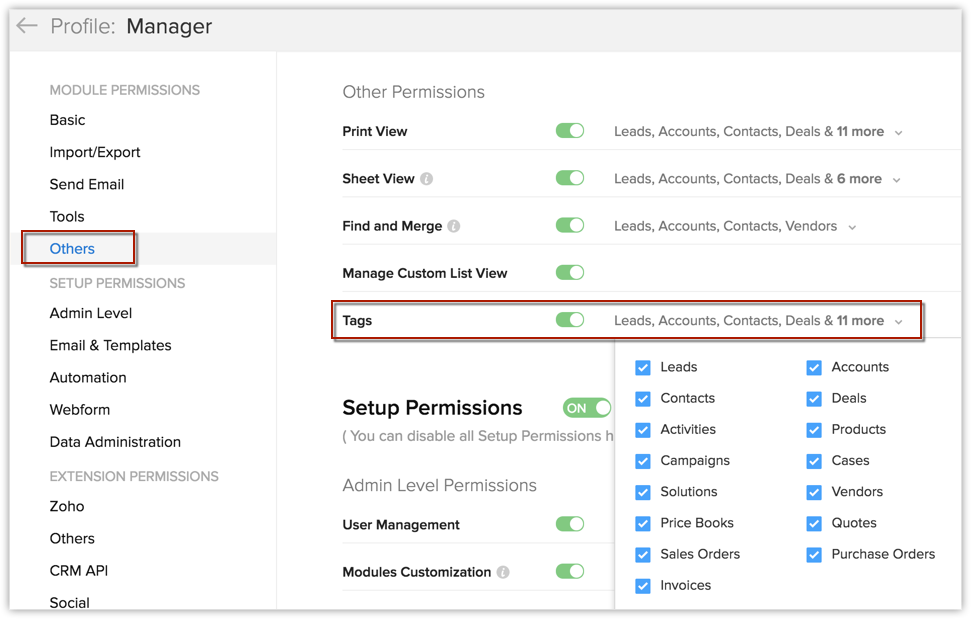
Under Module Permissions, you can define to which module the associated users of that particular profile will have access to tags.
To set module permissions for tags, do the following:
- Go to Setup > Users & Control > Security Control > Profiles.
- Choose any available user profile or create new profile.
- Under Module permissions, click Others.
- Select the required modules, where the user is allowed to view, add and manage tags.
Related Articles
Tagging records - An Overview
Tags are unique identifiers that can be associated to your CRM records to search, sort, categorize, filter, and segment records in a more efficient way. It is usually like adding keywords or any additional information to any record in CRM. For ...Tagging Records in CRM
Tags in Zoho CRM are usually easy to create. Tags are not just a simple category, they can be more powerful, since you can add multiple tags to a single record. You can also create tags in multiple locations in your CRM account, if required. You can ...What are the benefits of tagging records in Zoho CRM?
The primary objective of tagging in Zoho CRM is to help you categorize and prioritize records so that you can fetch them easily. For example, you can tag certain records as "Big deals" or "Tradeshow leads from Australia" or "Junk leads from ...What are the benefits of tagging records in Zoho CRM?
The primary objective of tagging in Zoho CRM is to help you categorize and prioritize records so that you can fetch them easily. For example, you can tag certain records as "Big deals" or "Tradeshow leads from Australia" or "Junk leads from ...Overview
The Zoho Recruit API uses the OAuth 2.0 protocol for authentication. It uses the Authorization Code Grant Type to obtain the grant token (code). This grant type allows you to share specific data with any application while keeping your usernames and ...