User Details
The User Details page provides detailed information about a particular user. There are various sections that display the user's Skillset, Planned vs Actual hours, Status summary, and Gamescope scorecard.
- Click
 in the top band.
 - Navigate to Manage Users and click Portal or Client users.
- Navigate to the user and click on the profile picture.
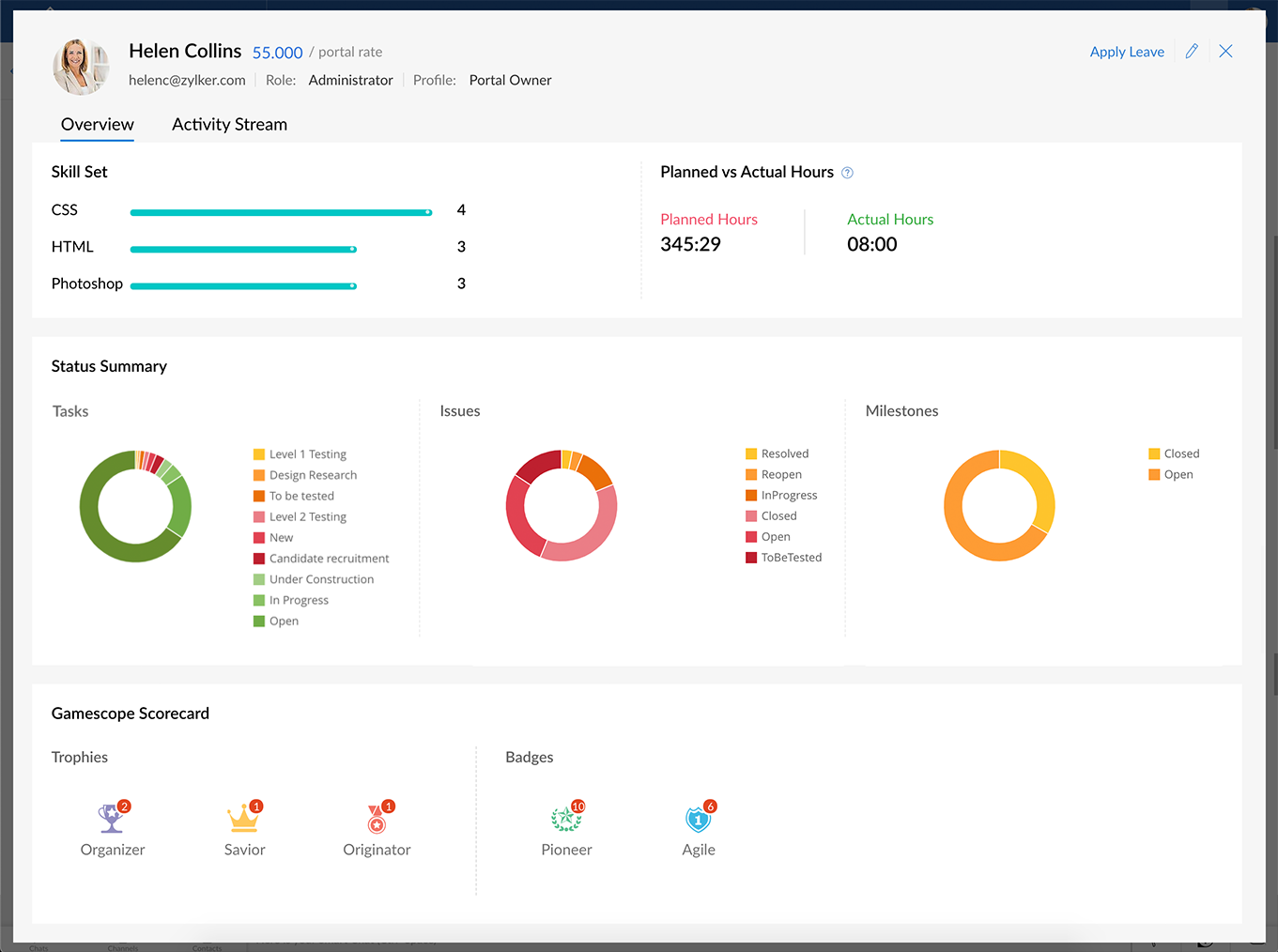
You can view the following information in the user details page:
- Skill sets: View skills acquired by the user. Skill details are pulled from Zoho People.
- Planned vs Actual hours: Planned hours are calculated based on the work hours allocated for the task assigned to the user. The actual hours spent is calculated based on the user's timesheets and timers.
- Task, Issue, and Milestone Summary: Graphical representation of your overall status in tasks and issues. Get a clear view of the task and issue completion status across projects.
- Gamescope scorecard: View the total number of trophies and badges won in the scorecard.
Related Articles
Manage user details
You can view, edit, and update user details by clicking a user's name in the Users tab. Edit a user's info Sign in to Zoho One , then click Admin Panel in the left menu. Click Users, then click on the user. You can find a specific user through the ...Manage Company Details
There are certain organization specific details, which help differentiate one organization from another. Zoho CRM recommends Users with Administrator's privilege to customize these company specific details, so that all users under an ...Updating Imprint details
Before you send an email campaign, make sure your campaigns clearly show who the sender is and provide sufficient contact information so that the recipients can contact you. This information must be directly and permanently visible to the recipients. ...Setting up organization details
Feature: Organization Settings | Edition: All Scenario A car dealership company subscribes to Zoho CRM's Enterprise edition to scale their customer service operation and increase sales across the US. To begin using Zoho CRM, they must first set up ...View Storage Details
Team Admins can get an overview of the storage used by their team from the Dashboard in the Admin console. They can also see how much storage is used for individual Team Folders and by team members. To view the storage details of your team: 1. Click ...